 CopyShot
Take a shot. Then just paste.
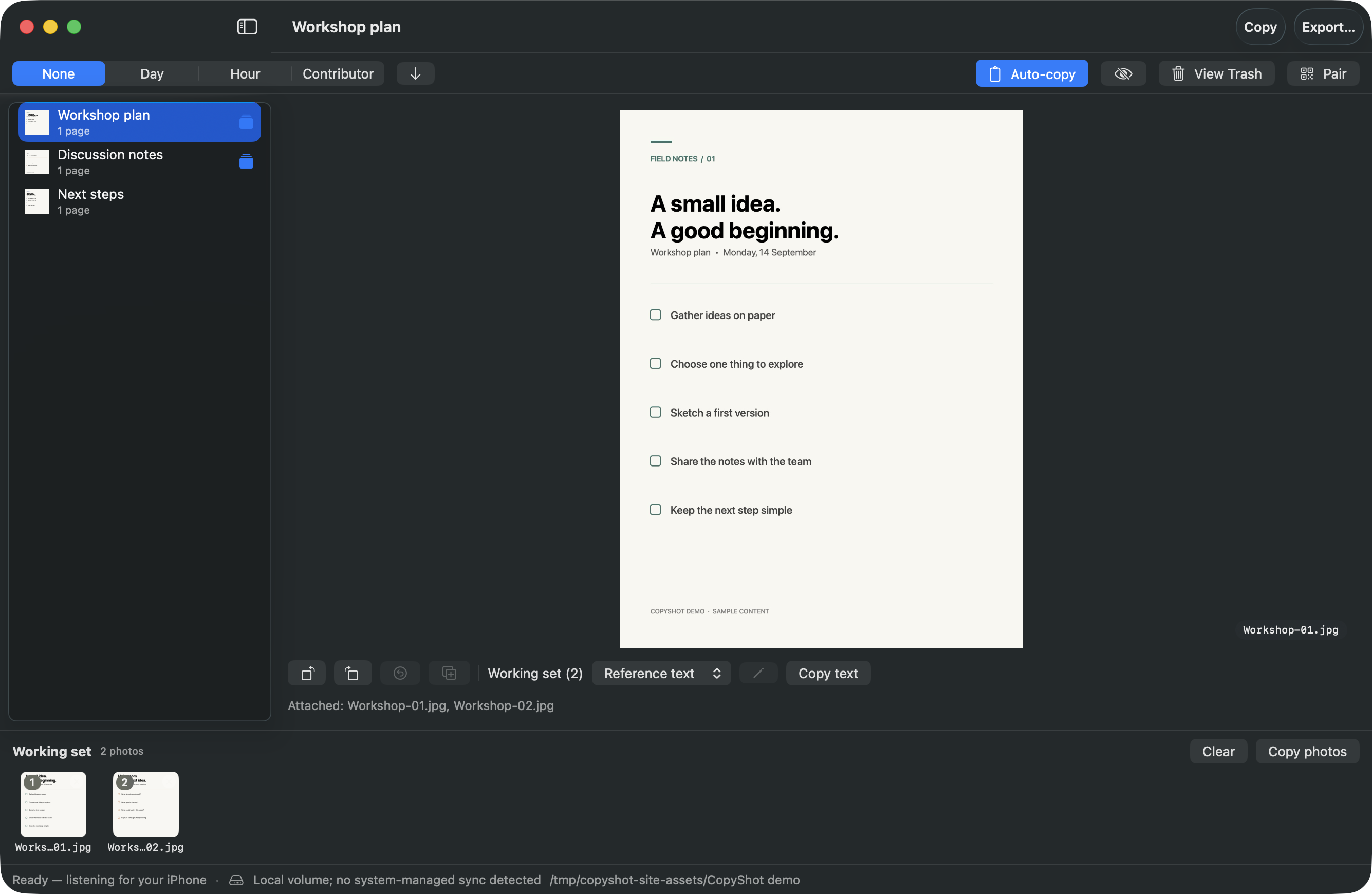
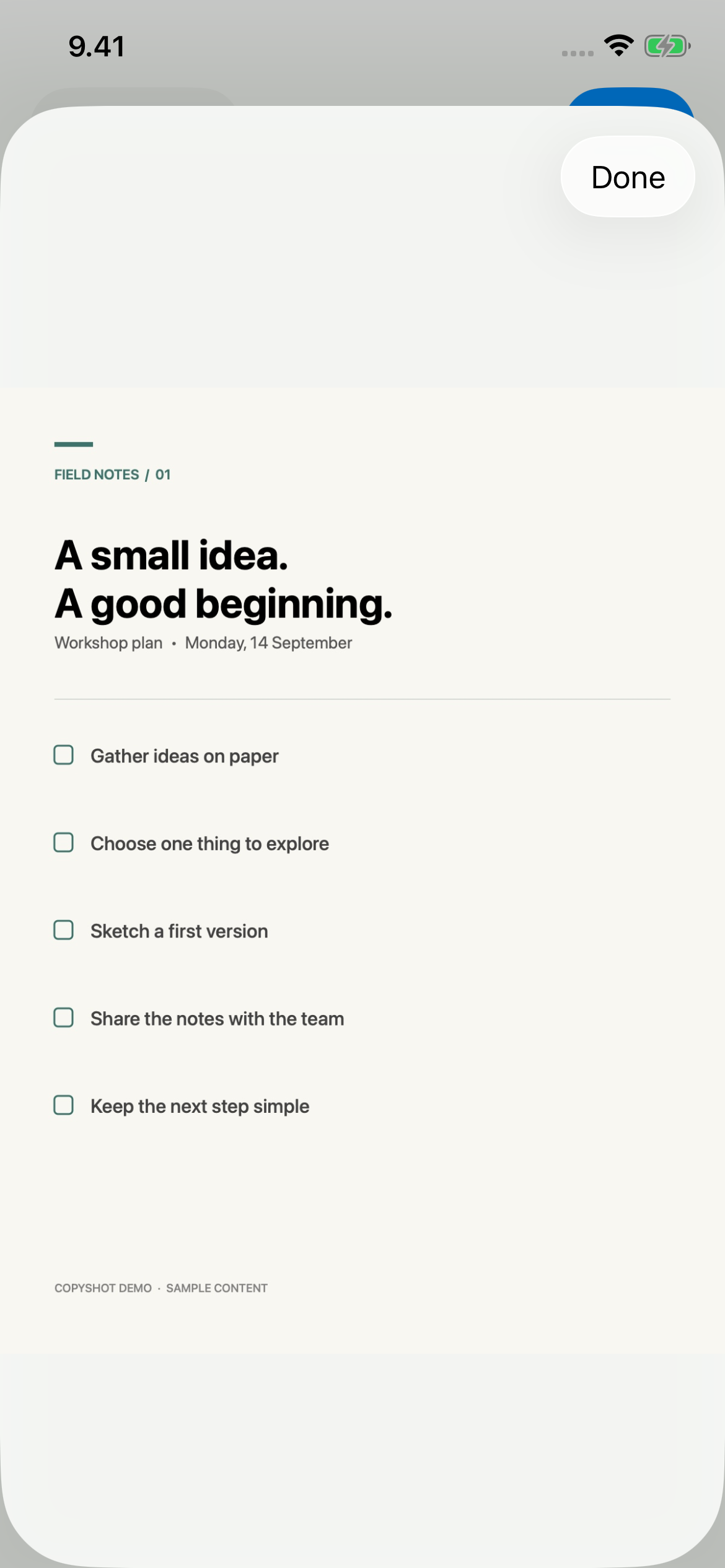
Take a photo or scan on your iPhone. CopyShot sends it to your Mac and prepares the clipboard automatically, so you can paste it into your work.
One purchase · iPhone + Mac
From capture to clipboard
Pair once. Connect your iPhone and Mac, then use Instant mode and automatic copying for the flow below.
- On your iPhone
Take a shot.
Photograph or scan a page on your iPhone. The camera stays ready for your next shot. - CopyShot handles this
Sent and copied automatically.
CopyShot transfers the image over your local network and puts it on your Mac’s clipboard. - On your Mac
Paste into your work.
Press ⌘V in an app that accepts image files, such as an AI conversation.
For recurring AI tasks, save your prompts as templates. CopyShot fills in the selected images’ filenames. Paste the images first, then copy and paste the filled prompt.
When you need several images, Batch mode lets you review them before sending. On your Mac, you can also arrange images from different captures into a set and copy them together. Your captures remain in your chosen library for later use.
Your devices, your destination
CopyShot transfers images over your local network without a CopyShot account. You choose the Mac library folder.
Pasting into an AI tool is optional. CopyShot itself does not send your images or prompts to an AI service.
Made for iPhone and Mac
Requires an iPhone running iOS 17 or later and a Mac running macOS 14 or later. For transfers, both devices must be reachable on the same local network. The apps are available in English and Finnish.
Get setup help · Read the privacy policy
One purchase for iPhone and Mac. No subscription.